Choose the columns to remove
The study picks columns by itself: a corner column, the middle of the long side, the middle of the short side and an interior column. To remove columns of your own, select them and choose Assign › Progressive collapse › Pick columns to remove. A picked column is removed in its lowest storey. Clear picked columns undoes the pick.
As for the pushover, the RC members need their designed bars.
Set up the collapse study
Choose Analysis › Collapse. If the project has no collapse study, one is added. Its Progressive collapse (OpenSees) group holds:
| Property | What it does |
|---|---|
| Procedure | Nonlinear dynamic (the column’s forces are taken away over a short time), or Nonlinear static pushdown (the load of the bays is raised until the frame fails). |
| Storeys | First; first, mid-height and below the roof; or all. |
| Removal time (× vertical period) | How fast the column goes. Default 0.1. |
| Dynamic increase factor Ω_N | For the pushdown. Overrides the value the program works out. |
| Collapse drop (× span) | A drop past this fraction of the shorter span is a collapse. Default 0.1. |
| Large displacements (catenary action) | Lets a sagging beam act as a tie. On by default. |
A new study uses 1.2 D + 0.5 L on the intact frame.
Run the scenarios
Press F5 with the study selected. Each column removal is its own OpenSees run, and several run at once. The results are merged into one result set, scenario after scenario.
Read the collapse check
Choose Results › Seismic › Collapse check. A scenario passes when the frame does not collapse and every hinge stays within the ASCE 41 collapse prevention rotation.
- A drop past the limit is a collapse.
- A run that stops converging first is reported as analysis stopped. That is not a pass.
The charts Drop at the removed column (or Pushdown curve), Collapse scenarios and Collapse hinge rotations are in Results › OpenSees › Seismic charts.
Play the collapse in 3D
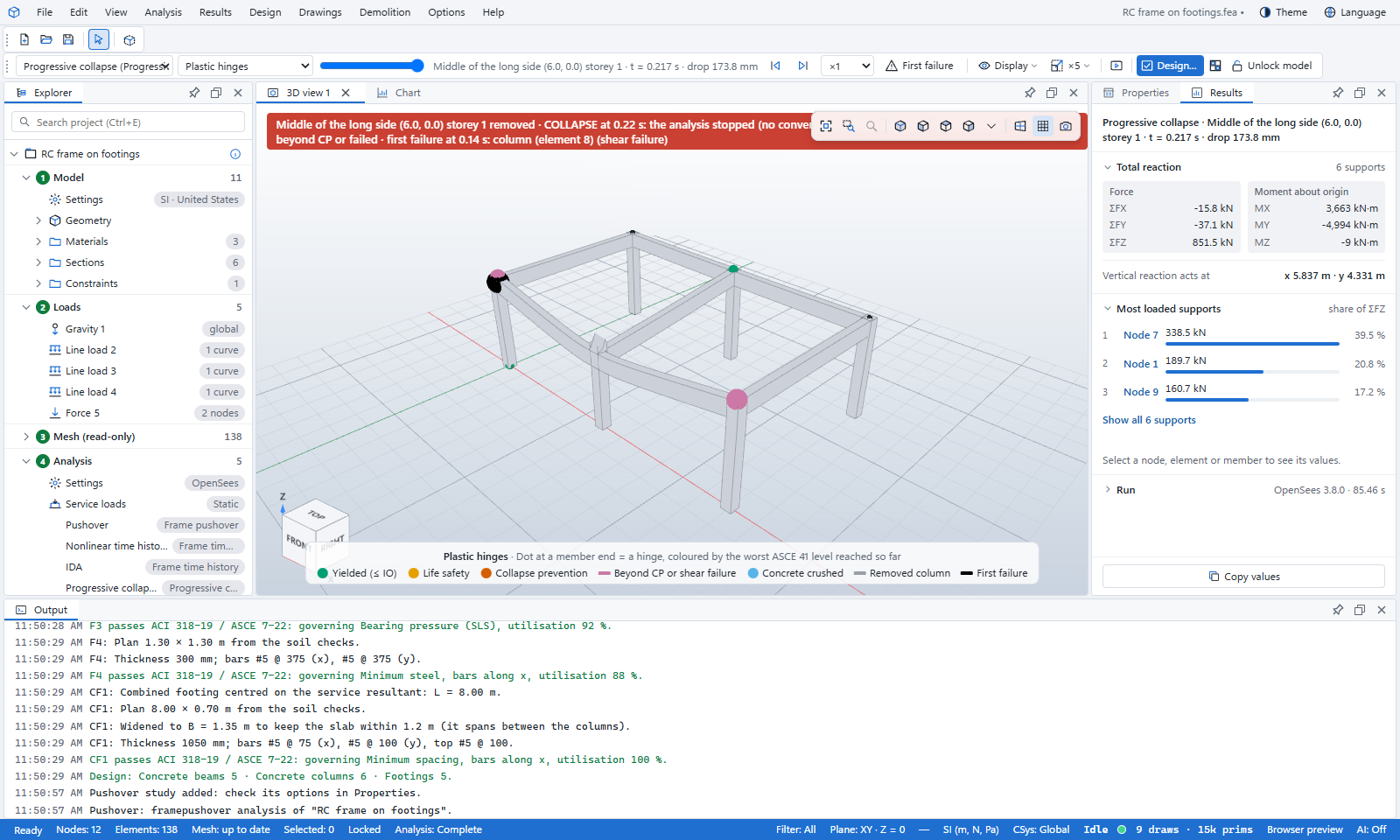
Open Explorer › Results › Seismic results › Collapse in 3D. Press play, or move the time slider. The hinges change colour as they reach IO, LS and CP; failed members are marked, and a removed column is drawn dashed.
Simulate a collapse in a time history
A time history can go on past failure. In the Frame time history (OpenSees) group, turn on Simulate the collapse. Members that fail are removed from the model and the run continues, so the loads redistribute and floors can fall.
- Bar fracture strain: a bar strain beyond this breaks the member. Default 0.1.
- Break on core crushing and Break on shear failure.
- Time to let it fall (s): gravity alone after the record, so a collapse that has started can finish. Default 5 s.
Next to the time slider, the step buttons and the speed list play the collapse in slow motion. First failure pauses where the collapse started.
A simulation, not an acceptance check
After the first member is removed, the run is a collapse simulation. There is no contact: falling parts pass through the floors below, and the run stops when the building reaches the ground. Record suites and IDA do not use this mode.
What you learned
- The collapse study removes columns at chosen or automatic locations, by a dynamic or a static procedure.
- A scenario passes with no collapse and every hinge within CP. A run that stops converging does not pass.
- Collapse in 3D and Simulate the collapse let you watch the building fail.